Split Chats and workspaces
Work in up to ten chats, with any agents: four side by side, then tabs.
Download the video · the pictures come from a demo account, so the names and chats in them are examples.
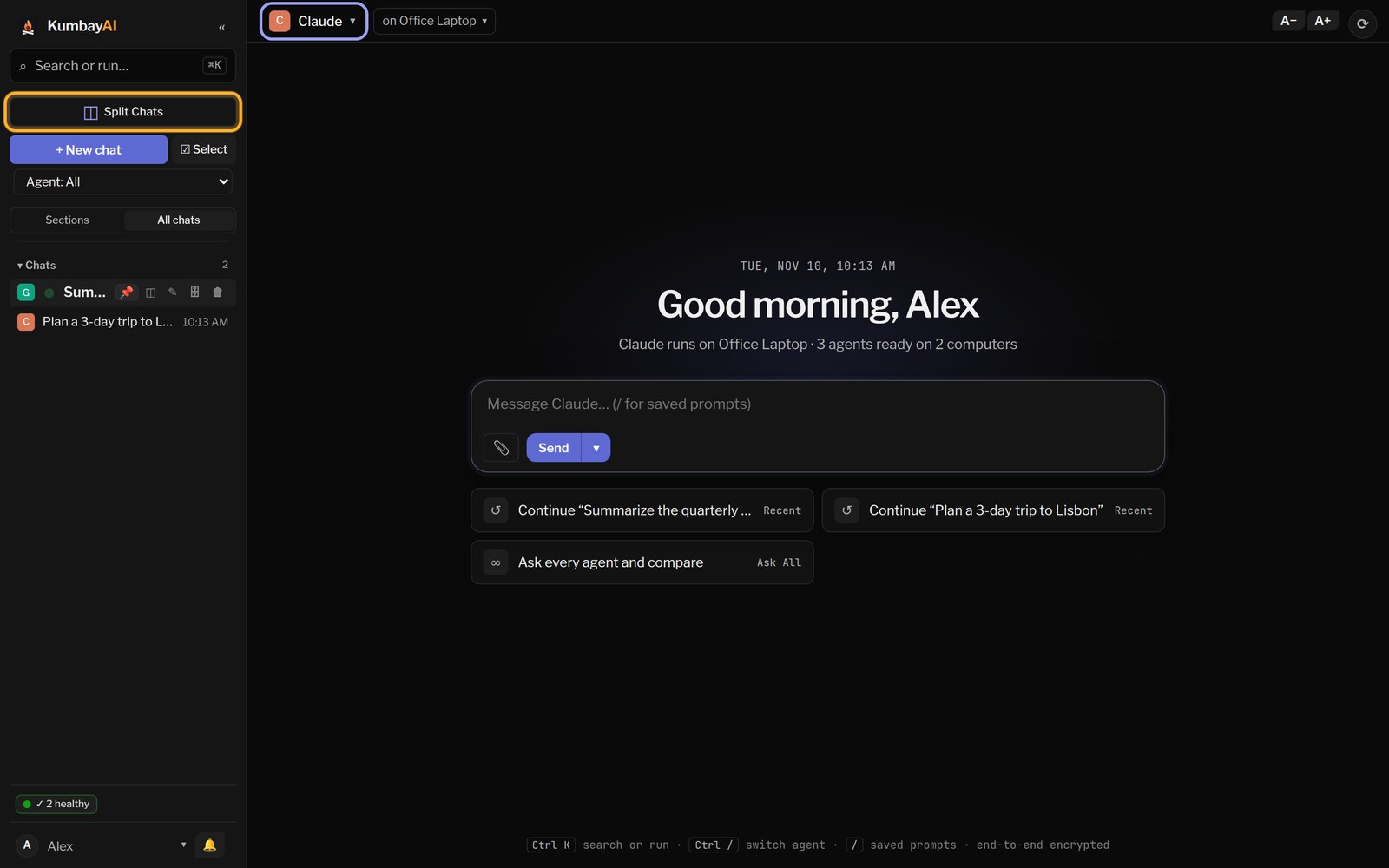
Step 1 of 5
Press “Split Chats” above your chat list, or the ◫ on any chat row to start a split with that chat.
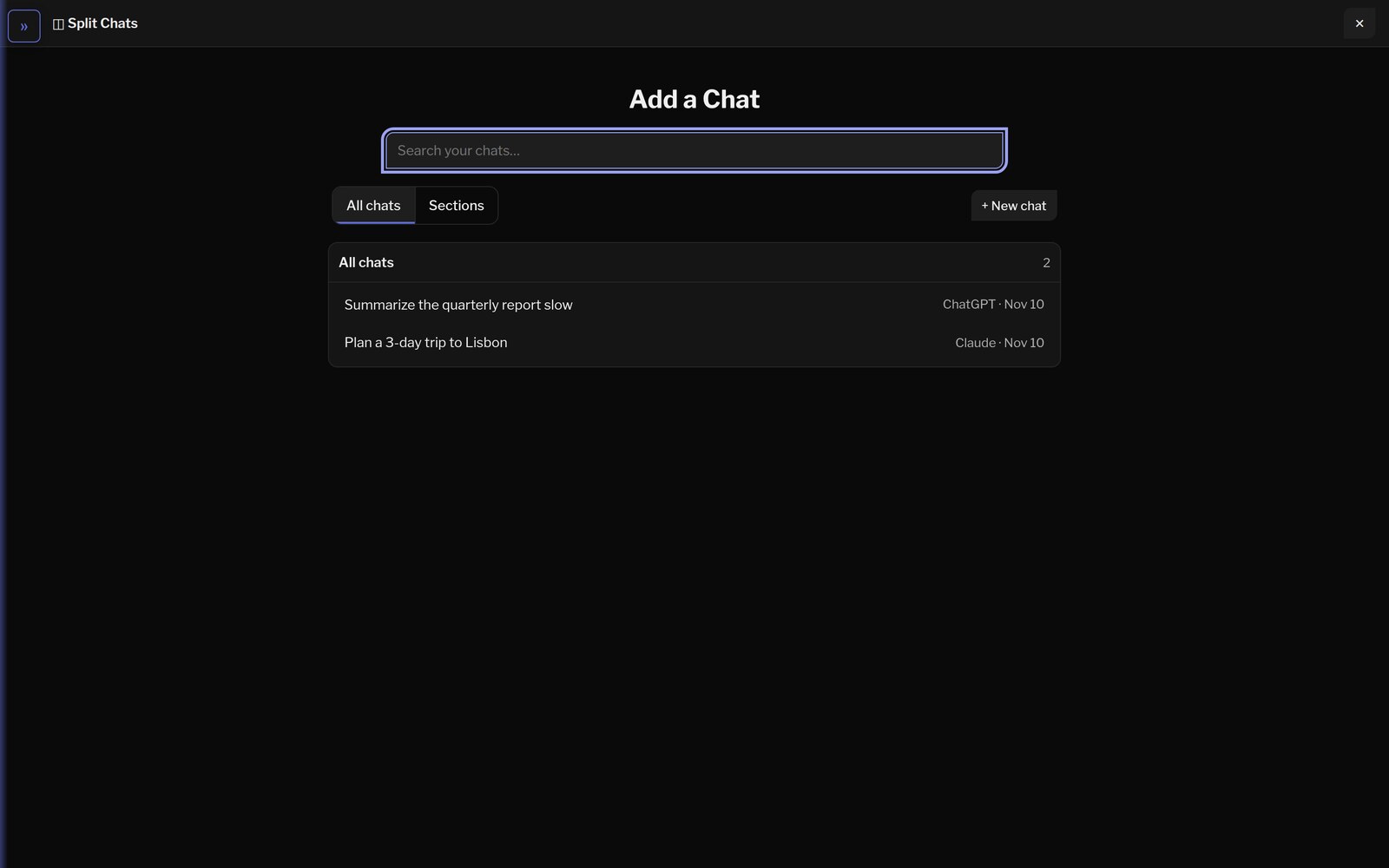
Step 2 of 5
Pick the chats to show, from any agent, or start a new one in a column.
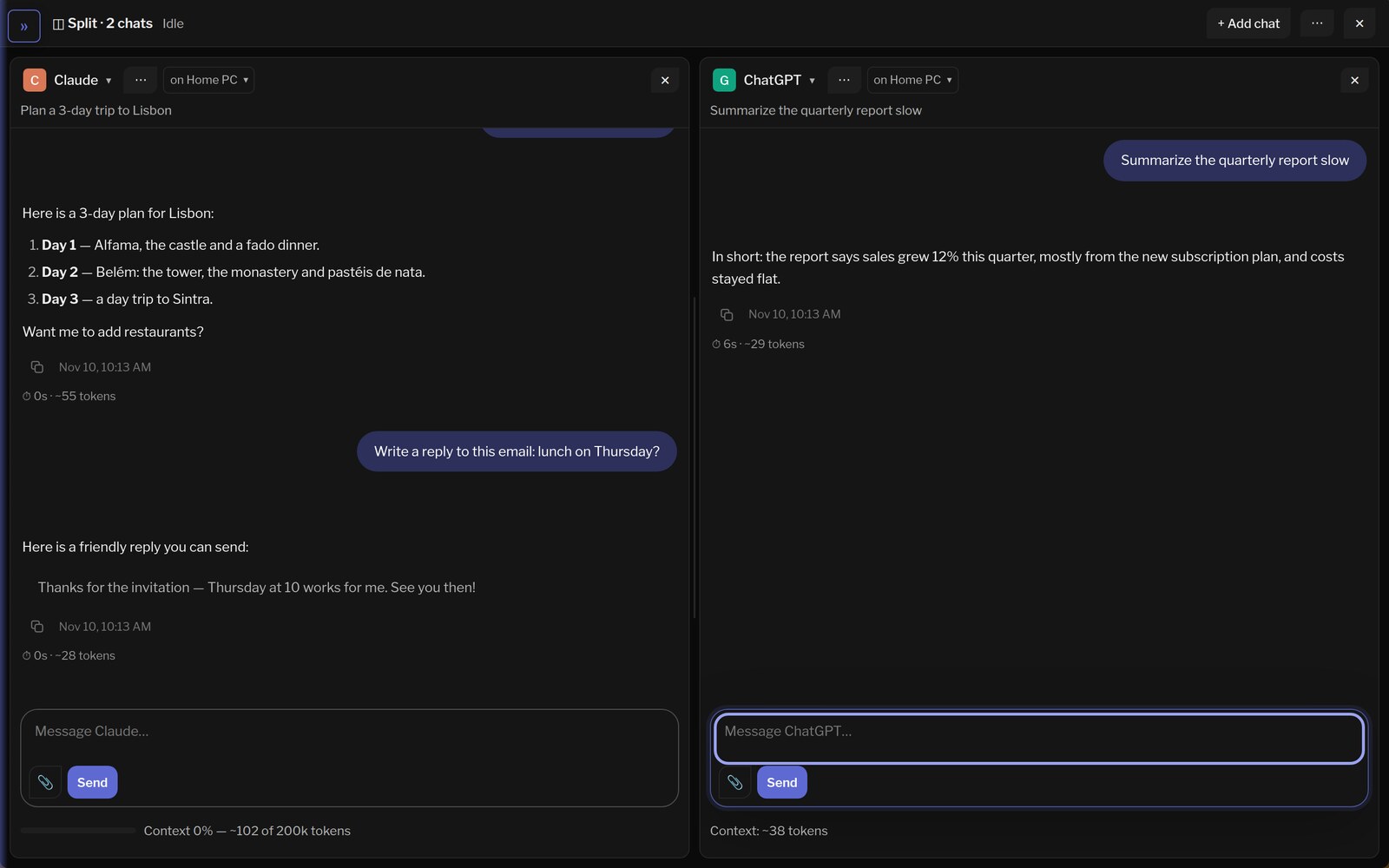
Step 3 of 5
Each chat has its own box, so you can work in all of them at once.
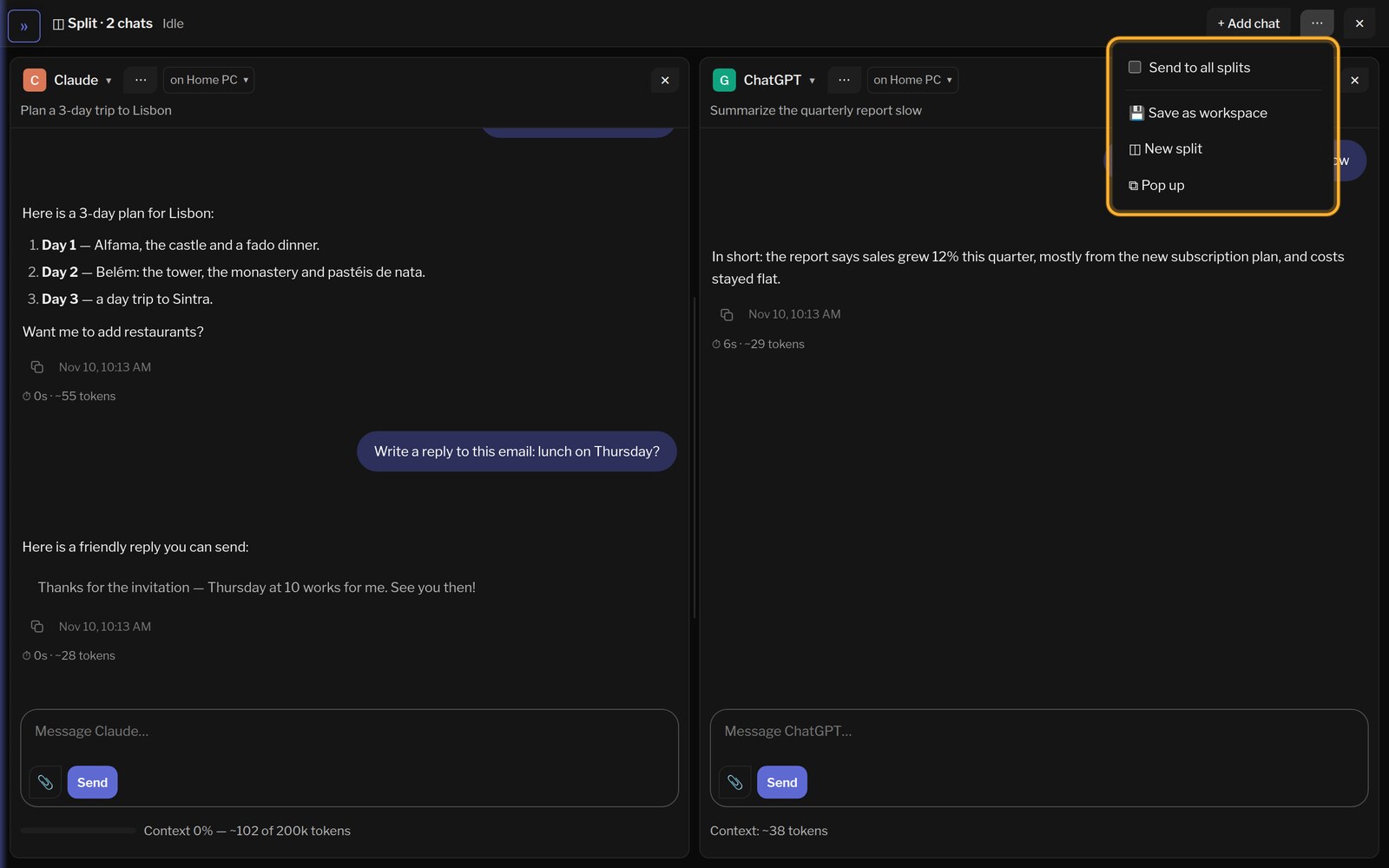
Step 4 of 5
The ⋯ menu sends one message to all of them, saves the layout as a workspace, or pops it out into its own window. “Chats” takes you back.
Step 5 of 5
While a split is open the sidebar folds away, so the chats get the whole width, and the blue button is “New split chat”. Move the mouse to the left edge of the screen to bring the sidebar back, or press » at the top left. On a phone or tablet, swipe between the chats.